
Plone True Gallery
The collective.plonetruegallery package is a Plone product that implements a
very customizable and sophisticated gallery/slideshow from the default Image
content type included by the Content User(s) at a Plone site or integrates your
Photos from the Picasa service (add collective.ptg.picasa)
and Flickr service (add collective.ptg.flickr).
Features
- Picasa and Flickr Support!
- Works with
Image,News Itemand other content types that has a Image Field (providesIImageContent). - Also works with redturtle.smartlink and collective.contentleadimage (install collective.ptg.contentleadimage) packages.
- Customize gallery size, transition (limited transitions right now), timed and other settings.
- Can use nested galleries.
- Searching and category selection for nested galleries.
- Galleria, Galleriffic, Highslide JS, s3Slider, Pikachoose, FancyBox and others display types.
- Display gallery inline.
- Products.Collage integration.
- Compatible with new-style Plone
Collectionscontent type. - Provides a base settings configlet.
How It Works
All you need to do is select the Gallery View from the Display
drop down item for any Folder or Collection content type, this view looks like
the following picture:
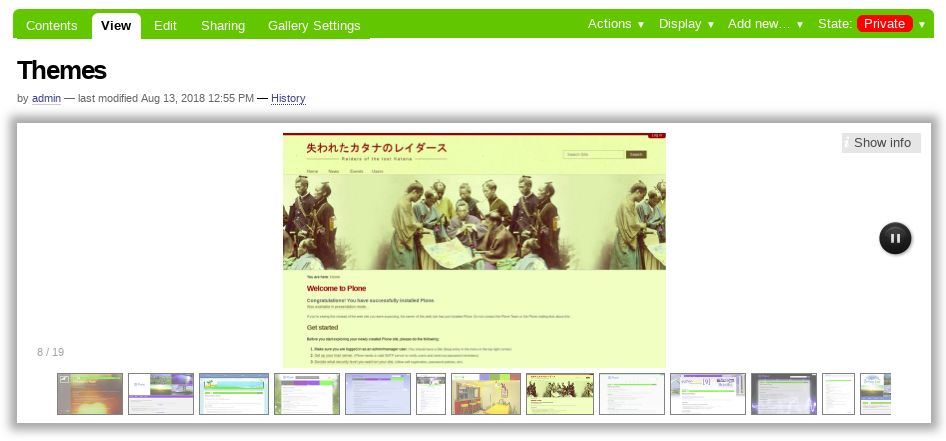
The “Gallery View” default from a Folder.
Once that is done, a Gallery Settings tab is enabled for the type. With this, you can customize the various settings for the Gallery.
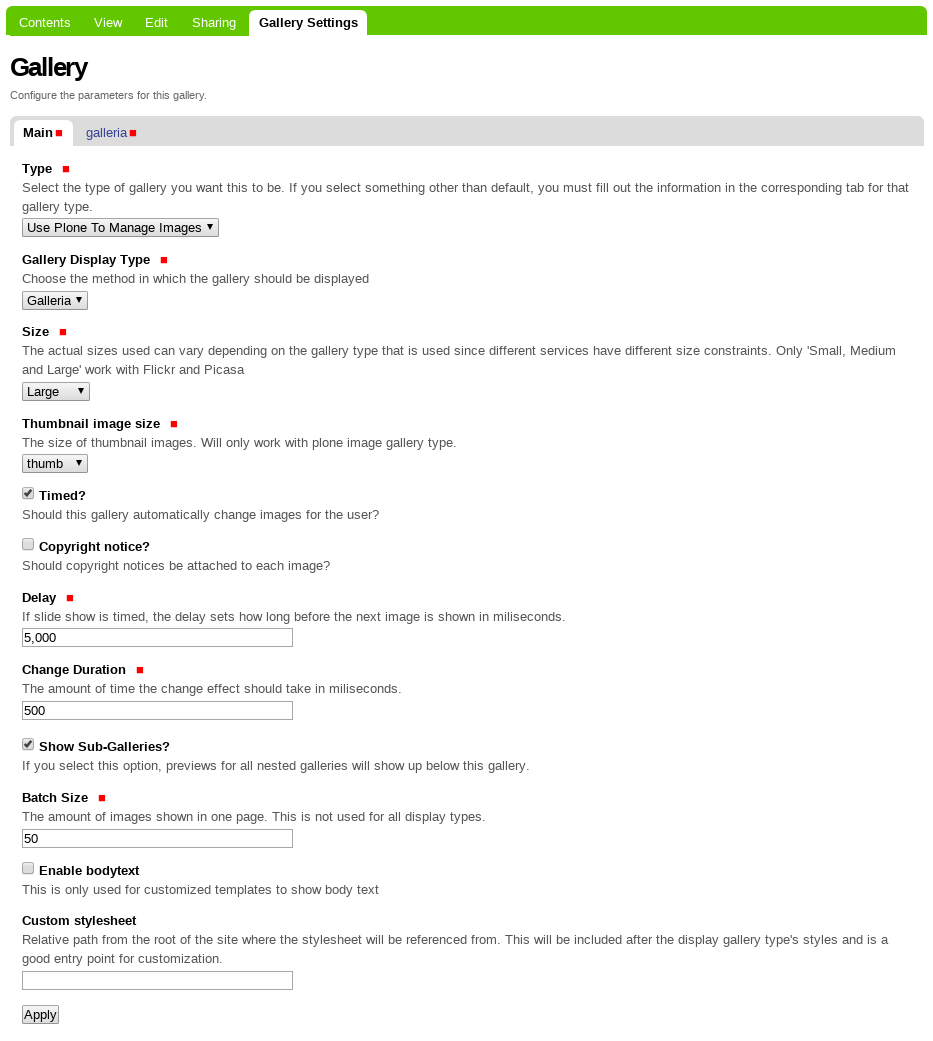
The “Gallery Settings” locally for a Folder.
Global control panel
The collective.plonetruegallery package included a global control panel for custom
the global settings. To access to the PloneTruegallery Default Settings
control panel follow the steps:
- at the top right corner of the page click on the Admin drop down menu
- choose Site Setup
- at the Add-on Configuration
- click on Plone True Gallery settings section
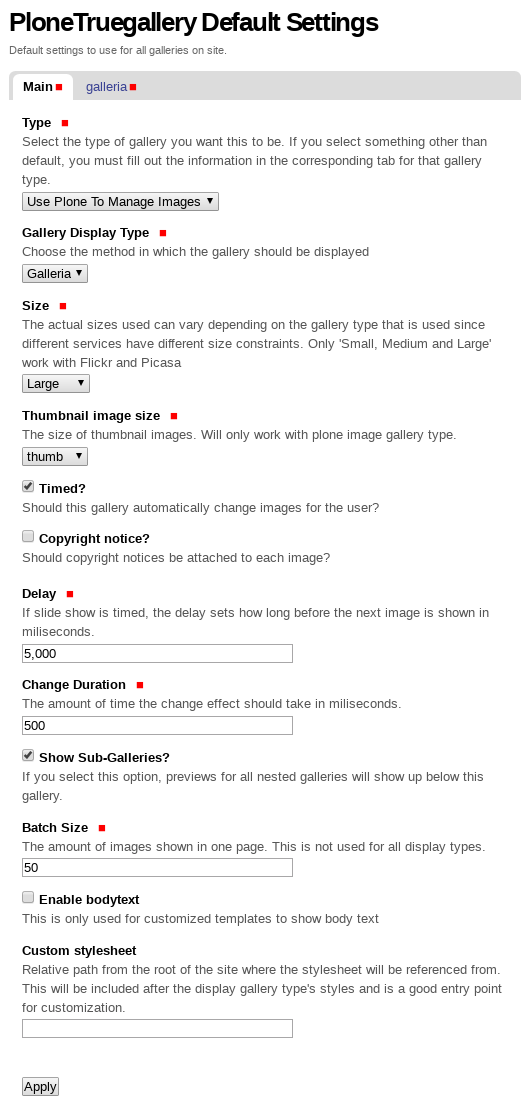
The PloneTruegallery Default Settings control panel.
By default the collective.plonetruegallery package include the gallery called
galleria via collective.ptg.galleria package.
Displaying Gallery inline
A view (@@placegalleryview) can be used to place the gallery inside of
other content.
Pop-up effect
you could do this:
- Install collective.prettyphoto package
- Mark the link to the gallery with “prettyPhoto” style (which has now been added) from your WYSIWYG editor
Inline Gallery
For showing a gallery in another page, try something like this:
<object data="path/to/gallery/@@placegalleryview" height="400" width="500">
  <param name="data" value="path/to/gallery" />
</object>
Notes for successful inline object tag usage:
- You will have to “whitelist”
<object>and<param>HTML elements insafe_htmlfrom theportal_transformstool. - When editing in Plone 4.2 you will have to switch your editor to Kupu since TinyMCE fracks up the object tag into a flash item.
- If testing without Apache in front of your Plone you will need to make sure that the “path/to/gallery” path from the example above includes any levels above the Plone object in the Zope instance (eg. if your Plone object is inside of a folder named “version1”, and the name of your gallery is “mygallery”, then the path should read “/version1/Plone/mygallery”. Of course, you will need to remove the “/version1/Plone” part when you put Apache in front of your Plone.
Or you can do the same with an iframe HTML element
Troubleshouting safe-html
If you have trouble, do this:
Go to safe_html in the portal_transforms tool
Make sure param and object HTML elements are valid tags (not nasty tag).
After that, you should flush the cache of ZODB by going to
- Zope root app ZMI
Control PanelDatabasemain(or whatever zodb you have)Flush Cachetab- Press “
Minimize” button
This will remove from ZODB cache all cooked texts. This procedure is mentioned
at the top of safe_html in portal_transforms tool.
Fetching of Images Explained
- When rendering a Picasa or Flickr gallery, it checks if the images have been fetched within a day. If they have not, then it re-fetches the images for the gallery.
- You can also force a specific gallery to be re-fetched by appending
@@refreshto the gallery url - You can manually refresh all galleries on the site by typing in a url like
mysite.com/@@refresh_all_galleriesThis means you can also setup a cron-like job to refresh all the galleries whenever you want to, just so it isn’t done while a user is trying to render a page.
Note
This package is available at https://pypi.org/project/collective.plonetruegallery.
Display Types Supported
To install any of the various extra display types, you need to install the dependant package in buildout
- bootstrap carousel (collective.ptg.bootstrapcarousel)
- carousel (collective.ptg.carousel)
- contact sheet (collective.ptg.contactsheet)
- content flow (collective.ptg.contentflow)
- easyslider (collective.ptg.easyslider)
- fancybox (collective.ptg.fancybox)
- galleria (ships with collective.ptg.galleria)
- galleriffic (collective.ptg.galleriffic)
- garagedoor (collective.ptg.garagedoor)
- highslide (collective.ptg.highslide)
- nivo gallery (collective.ptg.nivogallery)
- nivo slider (collective.ptg.nivoslider)
- pikachoose (collective.ptg.pikachoose)
- presentation (collective.ptg.presentation)
- s3slider (collective.ptg.s3slider)
- scrollable (collective.ptg.scrollable)
- sheetgallery (collective.ptg.sheetgallery)
- shufflegallery (collective.ptg.shufflegallery)
- simplegallery (collective.ptg.simplegallery)
- supersized (collective.ptg.supersized)
- thumbnail zoom gallery (collective.ptg.thumbnailzoom)
- uigallery (collective.ptg.uigallery)
collective.ptg.bootstrapcarousel
The collective.ptg.bootstrapcarousel package add Basic integration of the Twitter Bootstrap Carousel to collective.plonetruegallery package.
Warning
This add-on will only work with Plone >= 4.3 as jQuery 1.7 is not supported on previous versions of Plone.
Note
Bootstrap’s carousel needs jQuery 1.7 or higher
You can enabled the Bootstrap Carousel gallery display type follow the steps:
- at the top right corner of the page click on the Admin drop down menu
- choose Site Setup
- at the Add-on Configuration
- click on Plone True Gallery settings section
- at the Main tab changes the Gallery Display Type option with
the
Bootstrap Carouselvalue
The collective.ptg.bootstrapcarousel package include the gallery display type
called Bootstrap Carousel and this have a configlet like the following:
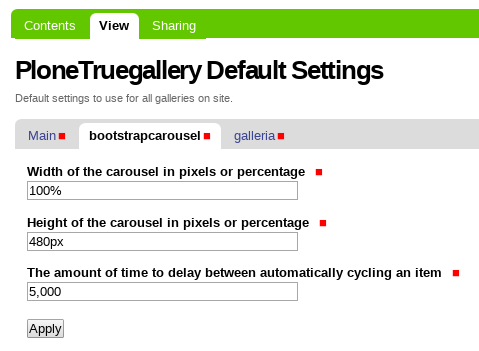
The bootstrapcarousel configlet from the PloneTruegallery Default Settings control panel.
Them, you can see how looks like the Bootstrap Carousel gallery display type from a Folder
as the following:

The Bootstrap Carousel gallery display type from a Folder.
Note
More information of the Twitter Bootstrap Carousel.
collective.ptg.carousel
The collective.ptg.carousel package add a carousel gallery display type using the jCarousel library for the collective.plonetruegallery package.
jCarousel is Built on top of the jQuery library and It was inspired
by the “Carousel Component” by Bill Scott.
You can enabled the Carousel gallery display type follow the steps:
- at the top right corner of the page click on the Admin drop down menu
- choose Site Setup
- at the Add-on Configuration
- click on Plone True Gallery settings section
- at the Main tab changes the Gallery Display Type option with
the
Carouselvalue
The collective.ptg.carousel package include the gallery display type
called Carousel and this have a configlet like the following:
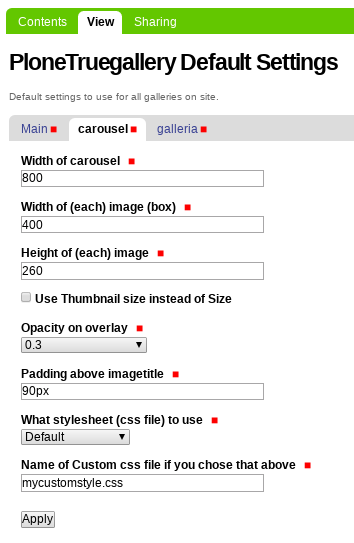
The carousel configlet from the PloneTruegallery Default Settings control panel.
Them, you can see how looks like the Carousel gallery display type from a Folder
as the following:
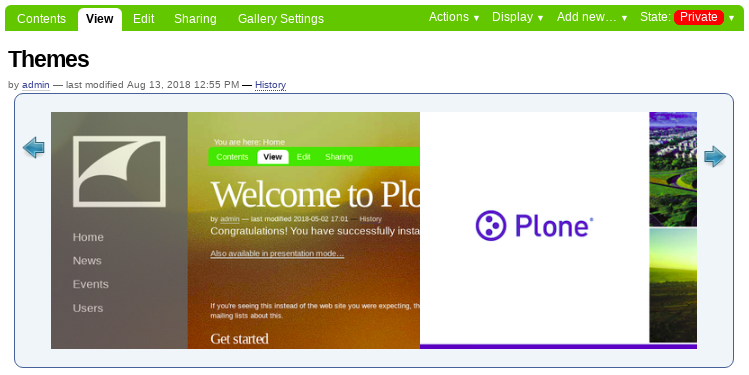
The Carousel gallery display type from a Folder.
collective.ptg.contactsheet
The collective.ptg.contactsheet package add a Contactsheet gallery display type for the
collective.plonetruegallery package.
You can enabled the Contactsheet gallery display type follow the steps:
- at the top right corner of the page click on the Admin drop down menu
- choose Site Setup
- at the Add-on Configuration
- click on Plone True Gallery settings section
- at the Main tab changes the Gallery Display Type option with
the
Contactsheetvalue
The collective.ptg.contactsheet package include the gallery display type
called Contactsheet and this have a configlet like the following:
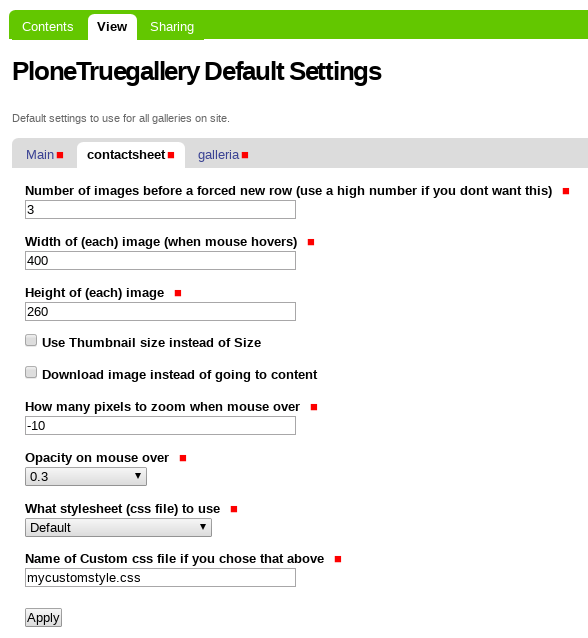
The contactsheet configlet from the PloneTruegallery Default Settings control panel.
Them, you can see how looks like the Contactsheet gallery display type from a Folder
as the following:

The Contactsheet gallery display type from a Folder.
collective.ptg.contentflow
The collective.ptg.contentflow package add a Content Flow gallery display type using
the ContentFlow library version 1.0.2 for the
collective.plonetruegallery package.
Note
ContentFlow includes support for Lightbox JS: Fullsize Image Overlays.
You can enabled the Content Flow gallery display type follow the steps:
- at the top right corner of the page click on the Admin drop down menu
- choose Site Setup
- at the Add-on Configuration
- click on Plone True Gallery settings section
- at the Main tab changes the Gallery Display Type option with
the
Content Flowvalue
The collective.ptg.contentflow package include the gallery display type
called Content Flow and this have a configlet like the following:
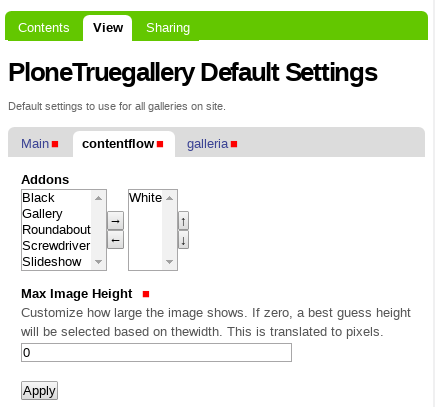
The contentflow configlet from the PloneTruegallery Default Settings control panel.
Them, you can see how looks like the Content Flow gallery display type from a Folder
as the following:
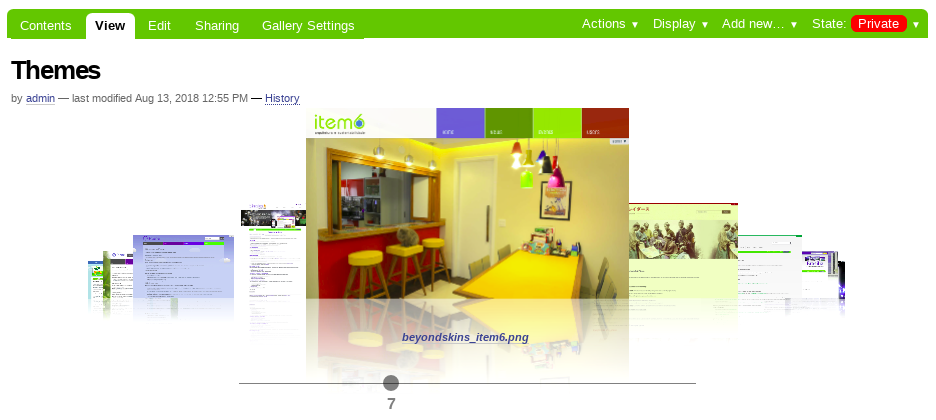
The Content Flow gallery display type from a Folder.
Note
ContentFlow is distributed under the terms of the
MIT license.
collective.ptg.easyslider
The collective.ptg.easyslider package add a Easyslider gallery display type using
the Easy Slider jQuery plugin version 1.7 for the
collective.plonetruegallery package.
Another option could be to use collective.easyslider package which has some more options, but:
- you don’t have to install another product if you are already using collective.plonetruegallery on your site
- I find it easier to integrate truegalleries in other templates
- collective.plonetruegallery works with redturtle.smartlink package etc.
collective.ptg.easysliderpackage can show several slides at the same time
You can enabled the Easyslider gallery display type follow the steps:
- at the top right corner of the page click on the Admin drop down menu
- choose Site Setup
- at the Add-on Configuration
- click on Plone True Gallery settings section
- at the Main tab changes the Gallery Display Type option with
the
Easyslidervalue
The collective.ptg.easyslider package include the gallery display type
called Easyslider and this have a configlet like the following:
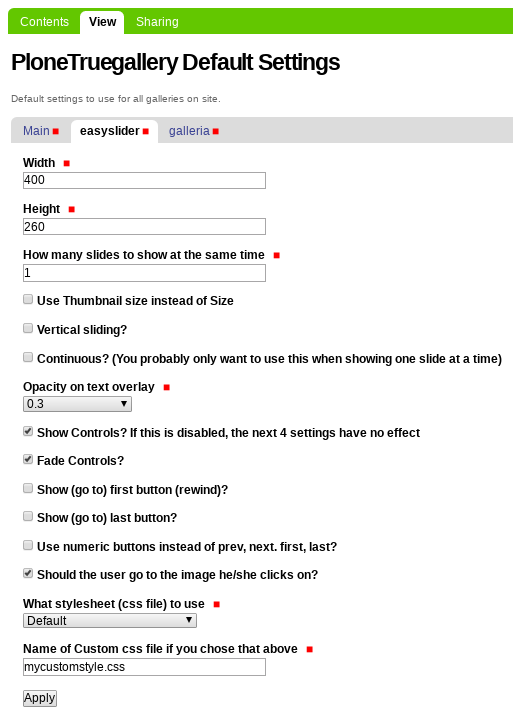
The easyslider configlet from the PloneTruegallery Default Settings control panel.
Them, you can see how looks like the Easyslider gallery display type from a Folder
as the following:

The Easyslider gallery display type from a Folder.
collective.ptg.fancybox
The collective.ptg.fancybox package add a Fancy Box gallery display type using
the FancyBox jQuery Plugin version 1.3.4 (11/11/2010) for the
collective.plonetruegallery package.
Note
FancyBox is a simple and fancy lightbox alternative
Warning
FancyBox requires: jQuery v1.3+.
You can enabled the Fancy Box gallery display type follow the steps:
- at the top right corner of the page click on the Admin drop down menu
- choose Site Setup
- at the Add-on Configuration
- click on Plone True Gallery settings section
- at the Main tab changes the Gallery Display Type option with
the
Fancy Boxvalue
Them, you can see how looks like the Fancy Box gallery display type from a Folder
as the following:
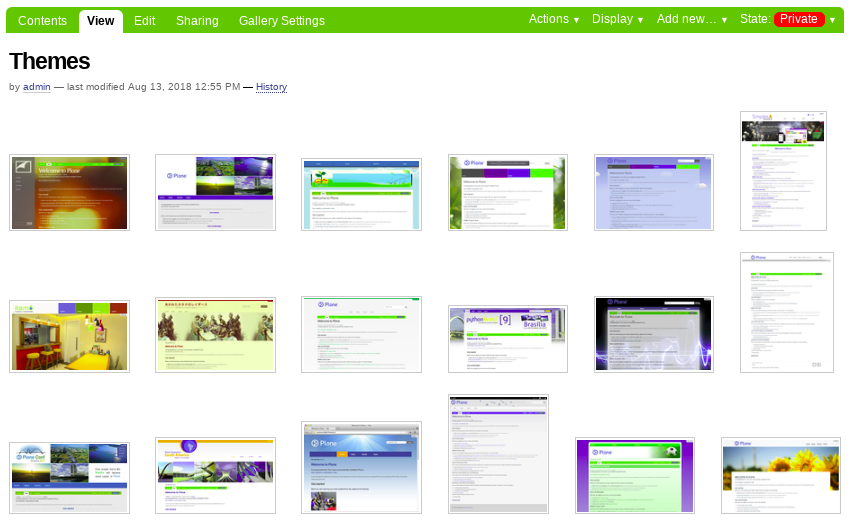
The Fancy Box gallery display type from a Folder.
Later can be click on any image and you have a fancybox image large view like the following:
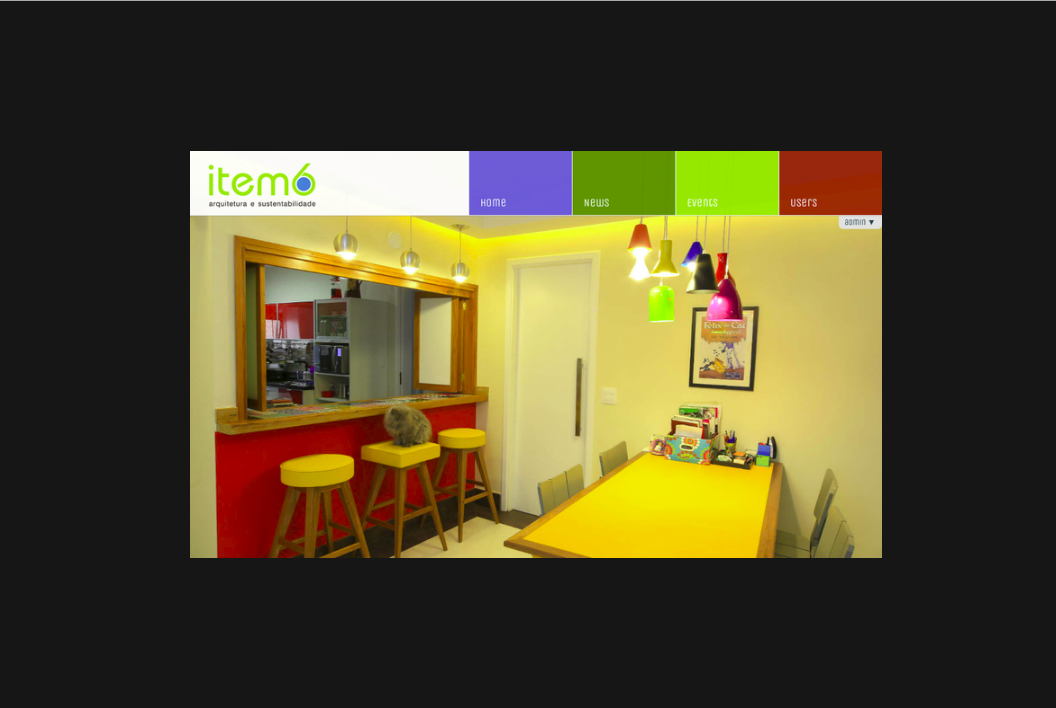
The image large view for a image from a Folder.
collective.ptg.flickr
This Flickr Support:
- to add support for these type of galleries you must install additional packages
- install collective.ptg.flickr for Flickr support
- These can just be added to your buildout or installed with
easy_installor you can add the package to your egg section like
Todo
TODO evaluates if the Flickr support for this section
Todo
TODO a screenshot for this section
Note
This package is available at https://pypi.org/project/collective.ptg.flickr.
collective.ptg.galleria
The collective.ptg.galleria package included basic integration of the Galleria javascript gallery with collective.plonetruegallery package.
Note
The Galleria javascript gallery is licensed under the MIT license.
By default the collective.plonetruegallery package include the gallery called
galleria and this have a configlet like the following:
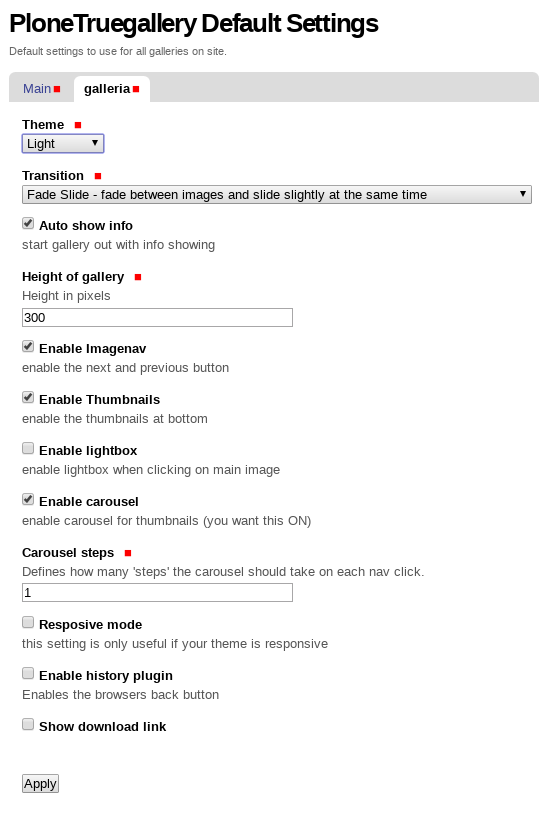
The galleria configlet from the PloneTruegallery Default Settings control panel.
collective.ptg.galleriffic
The collective.ptg.galleriffic package add a Galleriffic gallery display type using
the Galleriffic jQuery plugin version 2.0.1 for the collective.plonetruegallery package.
- history jQuery plugin
- Opacity Rollover jQuery plugin
You can enabled the Galleriffic gallery display type follow the steps:
- at the top right corner of the page click on the Admin drop down menu
- choose Site Setup
- at the Add-on Configuration
- click on Plone True Gallery settings section
- at the Main tab changes the Gallery Display Type option with
the
Gallerifficvalue
The collective.ptg.galleriffic package include the gallery display type
called Galleriffic and this have a configlet like the following:
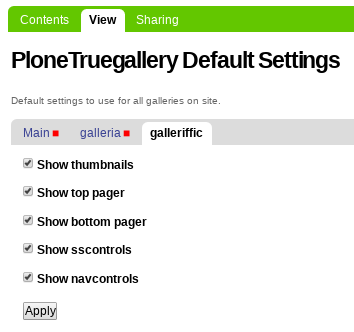
The galleriffic configlet from the PloneTruegallery Default Settings control panel.
Them, you can see how looks like the Galleriffic gallery display type from a Folder
as the following:

The Galleriffic gallery display type from a Folder.
collective.ptg.garagedoor
The collective.ptg.garagedoor package add a Garagedoor gallery display type using
for the collective.plonetruegallery package.
Comes with the “jquery.ui” effects (most of them are pretty useless, though)
You can enabled the Garagedoor gallery display type follow the steps:
- at the top right corner of the page click on the Admin drop down menu
- choose Site Setup
- at the Add-on Configuration
- click on Plone True Gallery settings section
- at the Main tab changes the Gallery Display Type option with
the
Garagedoorvalue
The collective.ptg.garagedoor package include the gallery display type
called Garagedoor and this have a configlet like the following:
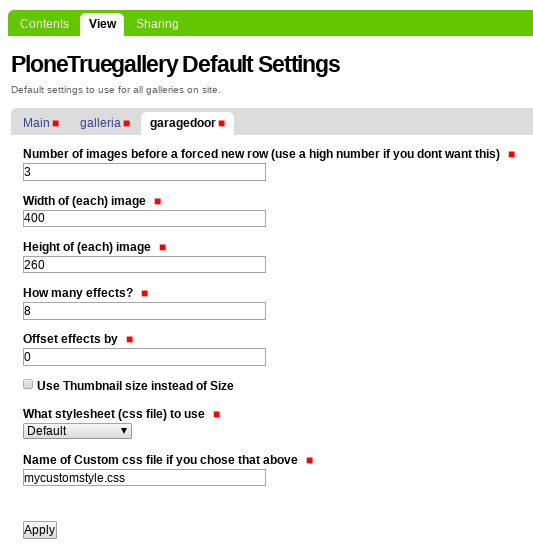
The garagedoor configlet from the PloneTruegallery Default Settings control panel.
Them, you can see how looks like the Garagedoor gallery display type from a Folder
as the following:

The Garagedoor gallery display type from a Folder.
Later can be click on any image and you have a fancybox image large view like the following:
The image large view from a Garagedoor gallery display view.
collective.ptg.highslide
The collective.ptg.highslide package add a Highslide gallery display type using
the Highslide JS jQuery plugin version 4.1.8 (October 27 2009)
for the collective.plonetruegallery package.
You can enabled the Highslide gallery display type follow the steps:
- at the top right corner of the page click on the Admin drop down menu
- choose Site Setup
- at the Add-on Configuration
- click on Plone True Gallery settings section
- at the Main tab changes the Gallery Display Type option with
the
Highslidevalue
The collective.ptg.highslide package include the gallery display type
called Highslide and this have a configlet like the following:
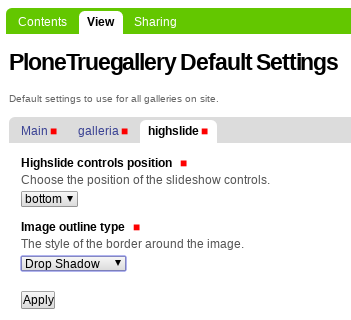
The highslide configlet from the PloneTruegallery Default Settings control panel.
Them, you can see how looks like the Highslide gallery display type from a Folder
as the following:
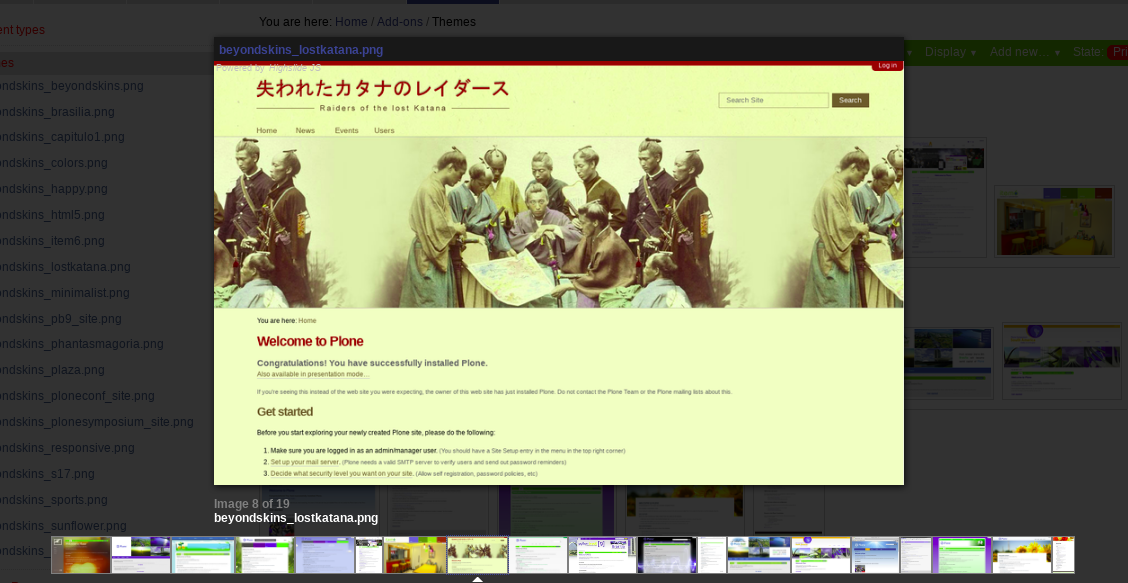
The Highslide gallery display type from a Folder.
collective.ptg.nivogallery
The collective.ptg.nivogallery package add a Nivo gallery gallery display type using
the jQuery Nivo Gallery version 0.7.1 (October 2011) for the collective.plonetruegallery package.
You can enabled the Nivogallery gallery display type follow the steps:
- at the top right corner of the page click on the Admin drop down menu
- choose Site Setup
- at the Add-on Configuration
- click on Plone True Gallery settings section
- at the Main tab changes the Gallery Display Type option with
the
Nivogalleryvalue
The collective.ptg.nivogallery package include the gallery display type
called Nivogallery and this have a configlet like the following:
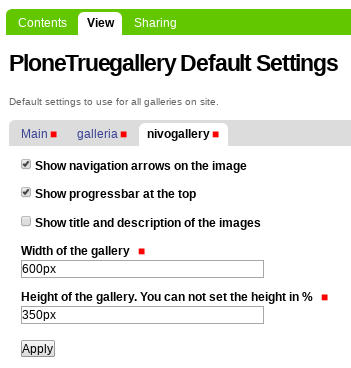
The nivogallery configlet from the PloneTruegallery Default Settings control panel.
Them, you can see how looks like the Nivogallery gallery display type from a Folder
as the following:
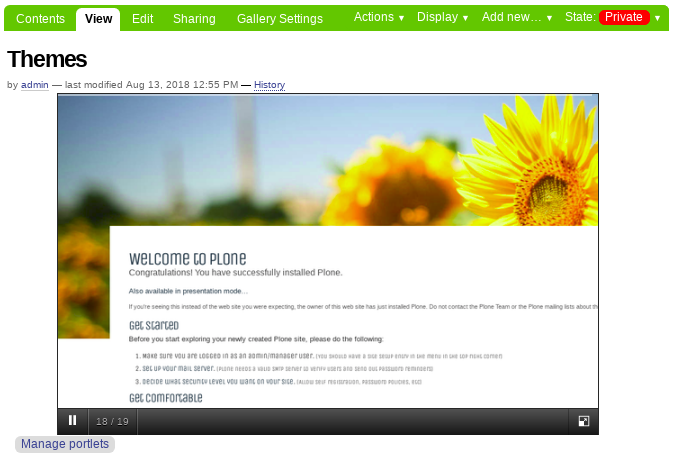
The Nivogallery gallery display type from a Folder.
collective.ptg.nivoslider
The collective.ptg.nivoslider package add a Nivoslider gallery display type using
the jQuery Nivo Slider version 2.7.1 (March 2010) for the collective.plonetruegallery package.
You can enabled the Nivoslider gallery display type follow the steps:
- at the top right corner of the page click on the Admin drop down menu
- choose Site Setup
- at the Add-on Configuration
- click on Plone True Gallery settings section
- at the Main tab changes the Gallery Display Type option with
the
Nivoslidervalue
The collective.ptg.nivoslider package include the gallery display type
called Nivoslider and this have a configlet like the following:
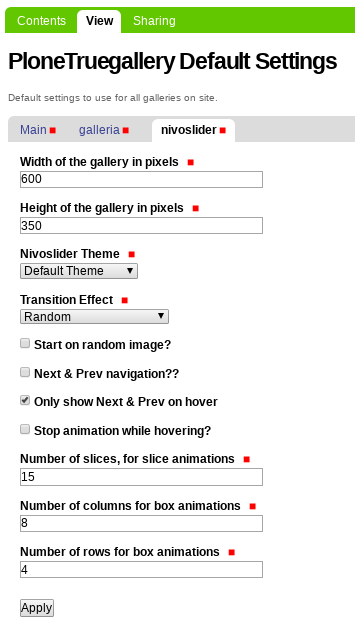
The nivoslider configlet from the PloneTruegallery Default Settings control panel.
Them, you can see how looks like the Nivoslider gallery display type from a Folder
as the following:
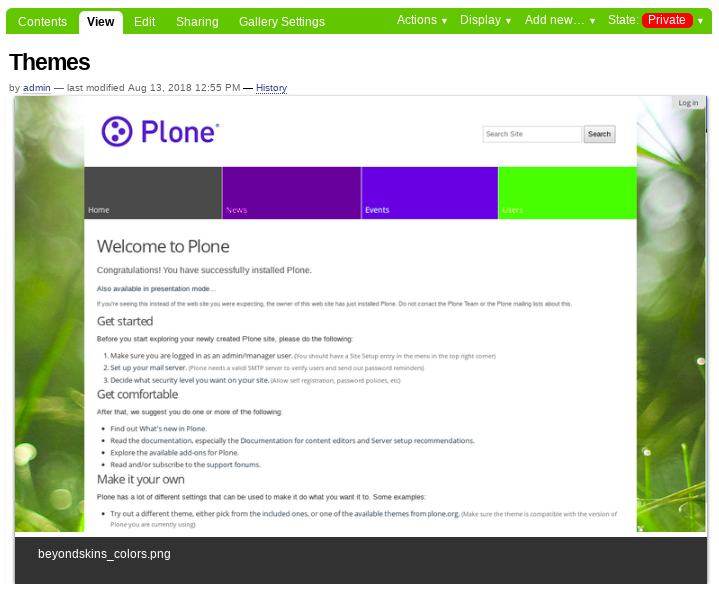
The Nivoslider gallery display type from a Folder.
collective.ptg.picasa
The Picasa Support
- to add support for these type of galleries you must install additional packages
- install collective.ptg.picasa for Picasa Web Album Support (tested with 1.3.3 and 2.0.12)
- On Plone 3.x you must also manually install hashlib package for Picasa support
- These can just be added to your buildout or installed with
easy_installor you can add the package to your egg section like
Todo
TODO evaluates if the Picasa support for this section
Todo
TODO a screenshot for this section
Note
This package is available at https://pypi.org/project/collective.ptg.picasa.
collective.ptg.pikachoose
The collective.ptg.pikachoose package add a Pikachoose gallery display type using the
jQuery plugin for photo galleries (1/16/2012) for the collective.plonetruegallery package.
You can enabled the Pikachoose gallery display type follow the steps:
- at the top right corner of the page click on the Admin drop down menu
- choose Site Setup
- at the Add-on Configuration
- click on Plone True Gallery settings section
- at the Main tab changes the Gallery Display Type option with
the
Pikachoosevalue
The collective.ptg.pikachoose package include the gallery display type
called Pikachoose and this have a configlet like the following:
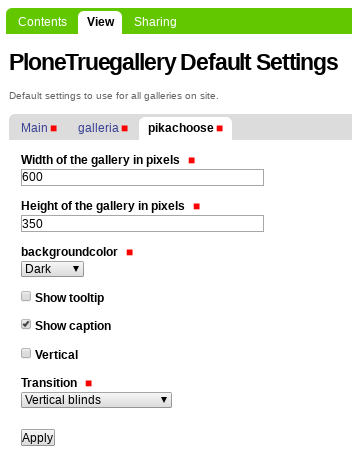
The pikachoose configlet from the PloneTruegallery Default Settings control panel.
Todo
TODO fix the jQuery error with Plone 4
Todo
TODO a screenshot for Pikachoose gallery display type
collective.ptg.presentation
The collective.ptg.presentation package add a Presentation gallery display type for
the collective.plonetruegallery package.
You can enabled the Presentation gallery display type follow the steps:
- at the top right corner of the page click on the Admin drop down menu
- choose Site Setup
- at the Add-on Configuration
- click on Plone True Gallery settings section
- at the Main tab changes the Gallery Display Type option with
the
Presentationvalue
The collective.ptg.presentation package include the gallery display type
called Presentation and this have a configlet like the following:
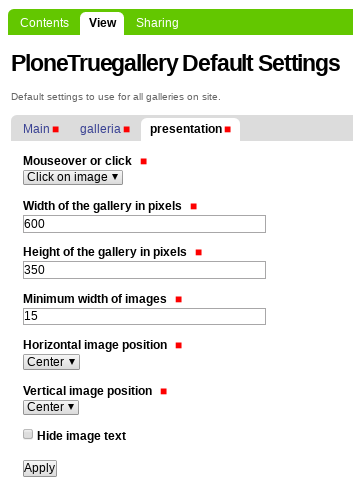
The presentation configlet from the PloneTruegallery Default Settings control panel.
Them, you can see how looks like the Presentation gallery display type from a Folder
as the following:
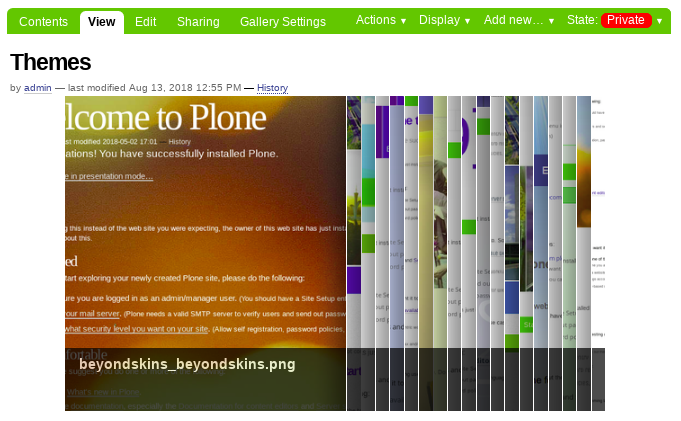
The Presentation gallery display type from a Folder.
collective.ptg.quicksand
The collective.ptg.quicksand package add a Quicksand gallery display type using
the Quicksand version 1.2.2 for the
collective.plonetruegallery package.
Note
Quicksand, let you reorder and filter items with a nice shuffling animation.
You can enabled the Quicksand gallery display type follow the steps:
- at the top right corner of the page click on the Admin drop down menu
- choose Site Setup
- at the Add-on Configuration
- click on Plone True Gallery settings section
- at the Main tab changes the Gallery Display Type option with
the
Quicksandvalue
Todo
TODO a screenshot for quicksand configlet from the PloneTruegallery Default Settings
control panel.
Todo
TODO a screenshot for quicksand gallery display type
collective.ptg.s3slider
The collective.ptg.s3slider package add a s3slider gallery display type using
the s3Slider version 1.0 for the collective.plonetruegallery package.
You can enabled the s3slider gallery display type follow the steps:
- at the top right corner of the page click on the Admin drop down menu
- choose Site Setup
- at the Add-on Configuration
- click on Plone True Gallery settings section
- at the Main tab changes the Gallery Display Type option with
the
s3slidervalue
The collective.ptg.s3slider package include the gallery display type
called s3slider and this have a configlet like the following:
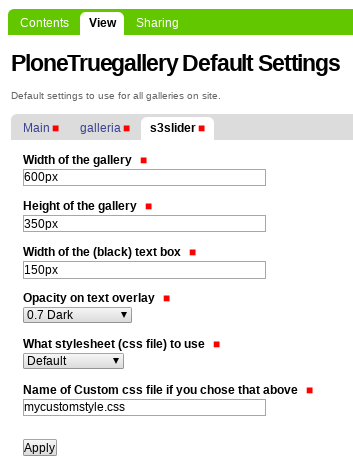
The s3slider configlet from the PloneTruegallery Default Settings control panel.
Them, you can see how looks like the s3slider gallery display type from a Folder
as the following:
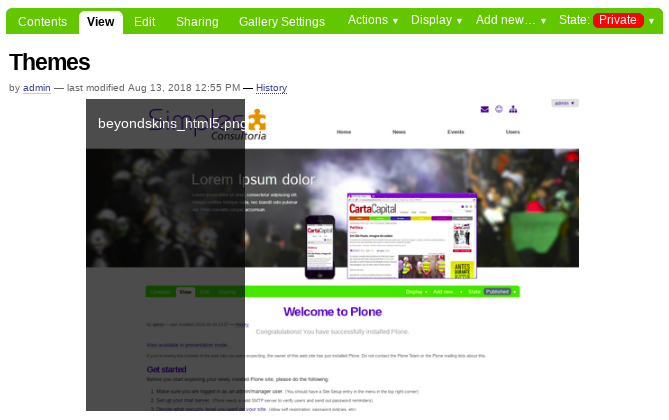
The s3slider gallery display type from a Folder.
collective.ptg.scrollable
The collective.ptg.scrollable package add a Scrollable gallery display type based
on the scrollable jquery.tools plugin version 1.0.0 (27 February 2012) as an
collective.plonetruegallery package extension.
You can enabled the Scrollable gallery display type follow the steps:
- at the top right corner of the page click on the Admin drop down menu
- choose Site Setup
- at the Add-on Configuration
- click on Plone True Gallery settings section
- at the Main tab changes the Gallery Display Type option with
the
Scrollablevalue
The collective.ptg.scrollable package include the gallery display type
called Scrollable and this have a configlet like the following:
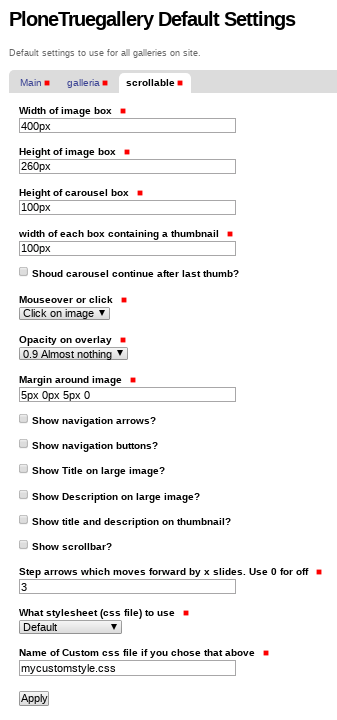
The scrollable configlet from the PloneTruegallery Default Settings control panel.
Them, you can see how looks like the Scrollable gallery display type from a Folder
as the following:
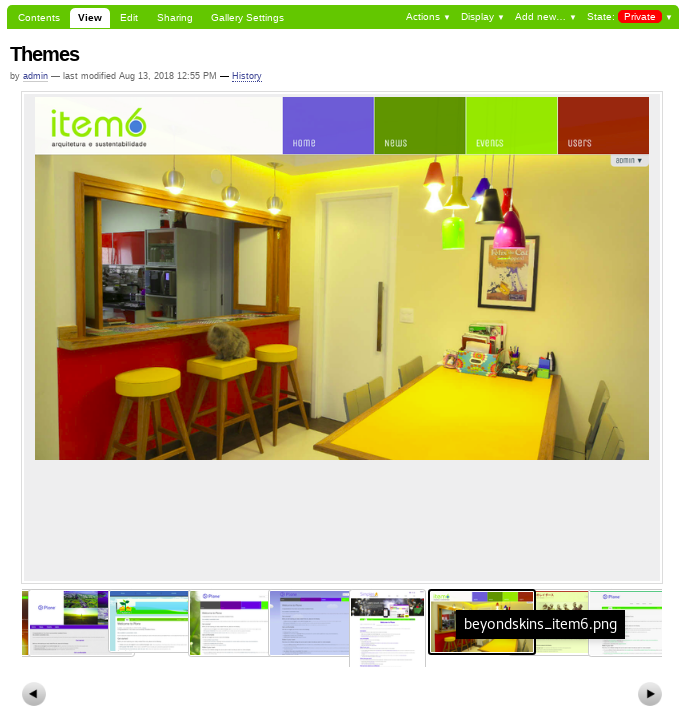
The Scrollable gallery display type from a Folder.
collective.ptg.sheetgallery
The collective.ptg.sheetgallery package add a Sheet gallery gallery display type
for the collective.plonetruegallery package.
Note
Sheet gallery is a gallery display type inspired by: http://www.fogia.se/sortiment
You can enabled the Sheetgallery gallery display type follow the steps:
- at the top right corner of the page click on the Admin drop down menu
- choose Site Setup
- at the Add-on Configuration
- click on Plone True Gallery settings section
- at the Main tab changes the Gallery Display Type option with
the
Sheetgalleryvalue
The collective.ptg.sheetgallery package include the gallery display type
called Sheetgallery and this have a configlet like the following:
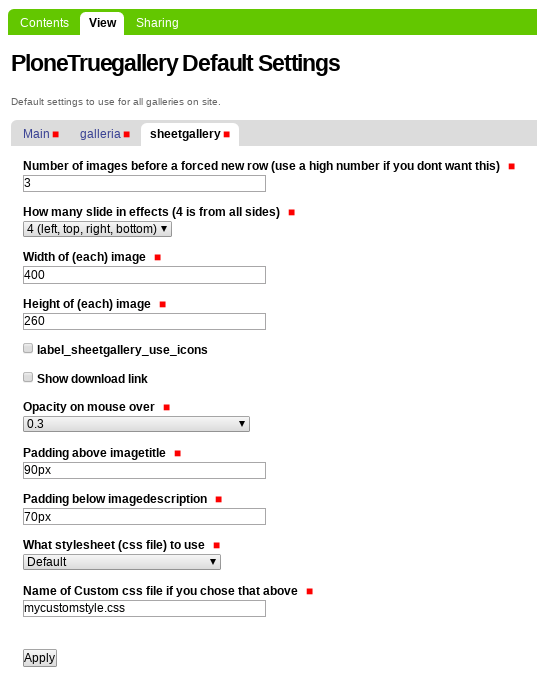
The sheetgallery configlet from the PloneTruegallery Default Settings control panel.
Them, you can see how looks like the Sheetgallery gallery display type from a Folder
as the following:
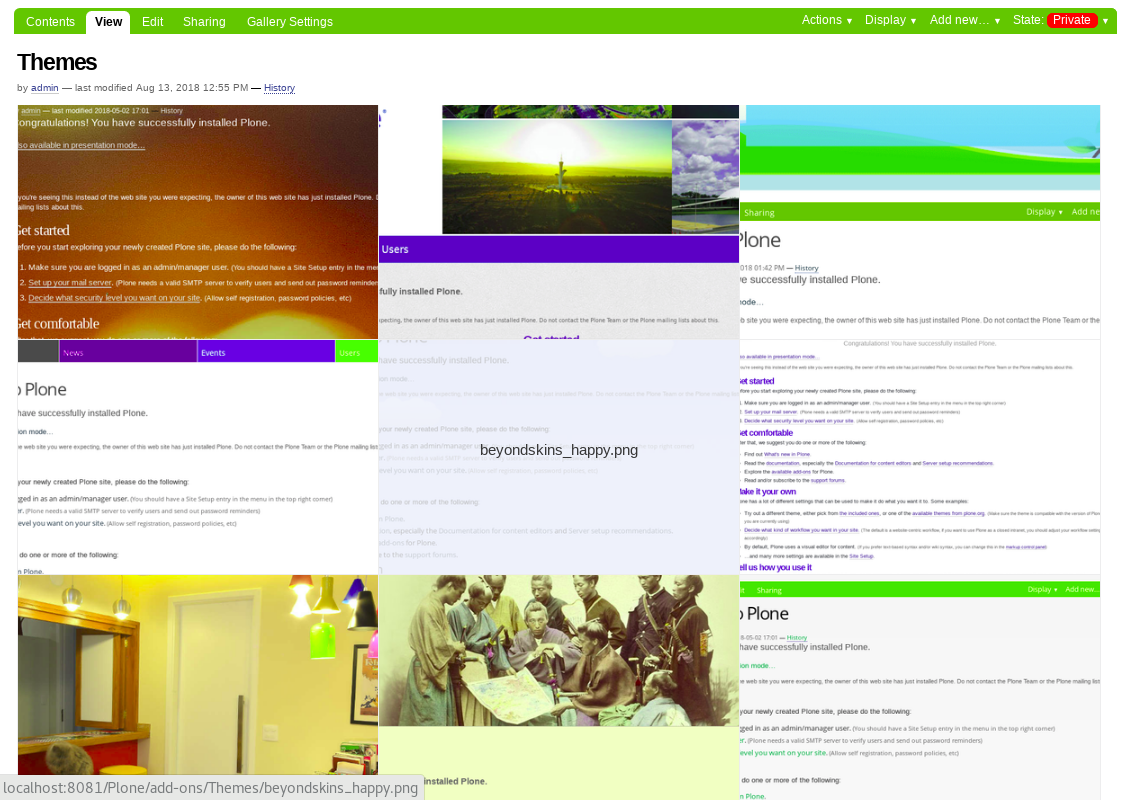
The Sheetgallery gallery display type from a Folder.
collective.ptg.shufflegallery
The collective.ptg.shufflegallery package add a shufflegallery gallery display type
using the Shufflegallery
jQuery Plugin as an collective.plonetruegallery package extension.
You can enabled the shufflegallery gallery display type follow the steps:
- at the top right corner of the page click on the Admin drop down menu
- choose Site Setup
- at the Add-on Configuration
- click on Plone True Gallery settings section
- at the Main tab changes the Gallery Display Type option with
the
shufflegalleryvalue
The collective.ptg.shufflegallery package include the gallery display type
called shufflegallery and this have a configlet like the following:
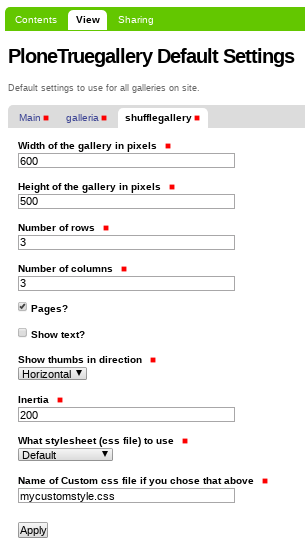
The shufflegallery configlet from the PloneTruegallery Default Settings control panel.
Them, you can see how looks like the shufflegallery gallery display type from a Folder
as the following:
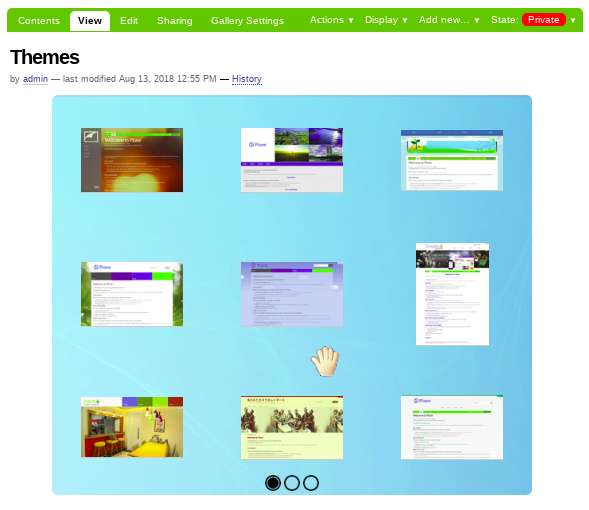
The shufflegallery gallery display type from a Folder.
collective.ptg.simplegallery
The collective.ptg.simplegallery package add a Simplegallery gallery display type
for the collective.plonetruegallery package.
You can enabled the simplegallery gallery display type follow the steps:
- at the top right corner of the page click on the Admin drop down menu
- choose Site Setup
- at the Add-on Configuration
- click on Plone True Gallery settings section
- at the Main tab changes the Gallery Display Type option with
the
Simplegalleryvalue
The collective.ptg.simplegallery package include the gallery display type
called Simplegallery and this have a configlet like the following:
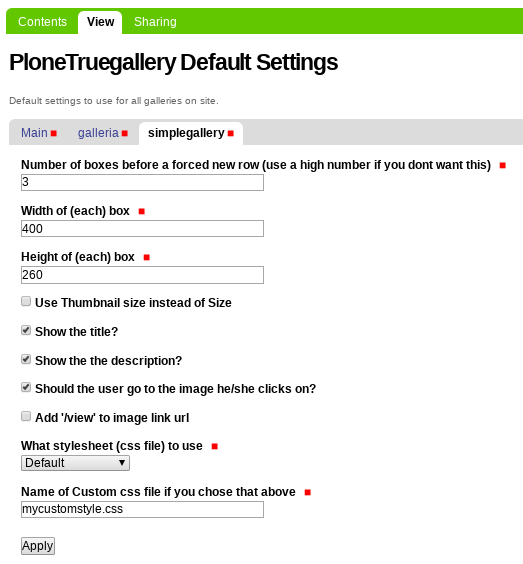
The simplegallery configlet from the PloneTruegallery Default Settings control panel.
Them, you can see how looks like the Simplegallery gallery display type from a Folder
as the following:

The Simplegallery gallery display type from a Folder.
Later can be click on any image and you have a image large view like the following:
The image large view for a image from a Folder.
collective.ptg.supersized
The collective.ptg.supersized package add a Supersized gallery display type for
Fullscreen Slideshow using the Supersized
jQuery Plugin version 3.2.7 as an collective.plonetruegallery package extension.
You can enabled the Supersized gallery display type follow the steps:
- at the top right corner of the page click on the Admin drop down menu
- choose Site Setup
- at the Add-on Configuration
- click on Plone True Gallery settings section
- at the Main tab changes the Gallery Display Type option with
the
Supersizedvalue
The collective.ptg.supersized package include the gallery display type
called Supersized and this have a configlet like the following:
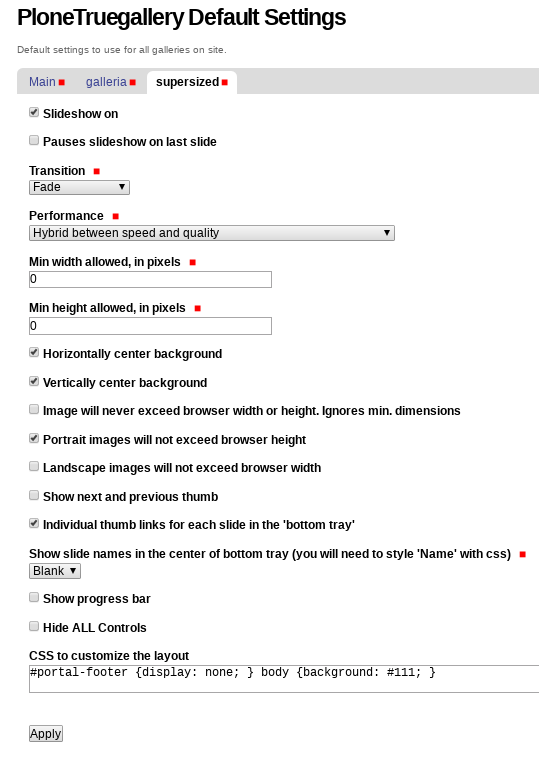
The supersized configlet from the PloneTruegallery Default Settings control panel.
Them, you can see how looks like the Supersized gallery display type from a Folder
as the following:

The Supersized gallery display type from a Folder.
collective.ptg.thumbnailzoom
The collective.ptg.thumbnailzoom package add a Thumbnailzoom gallery display type
using the Thumbnail Zoom as an collective.plonetruegallery package extension.
You can enabled the Thumbnailzoom gallery display type follow the steps:
- at the top right corner of the page click on the Admin drop down menu
- choose Site Setup
- at the Add-on Configuration
- click on Plone True Gallery settings section
- at the Main tab changes the Gallery Display Type option with
the
Thumbnailzoomvalue
The collective.ptg.thumbnailzoom package include the gallery display type
called Thumbnailzoom and this have a configlet like the following:
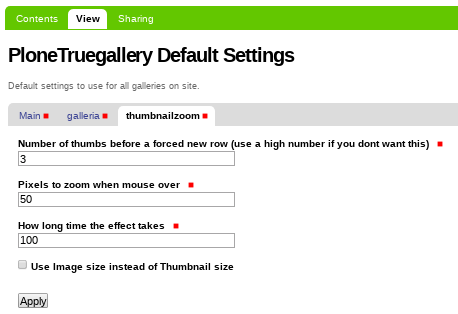
The thumbnailzoom configlet from the PloneTruegallery Default Settings control panel.
Them, you can see how looks like the Thumbnailzoom gallery display type from a Folder
as the following:
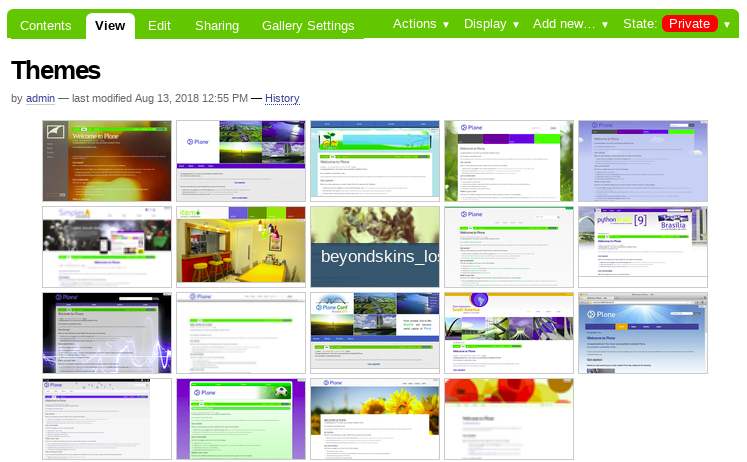
The Thumbnailzoom gallery display type from a Folder.
collective.ptg.uigallery
The collective.ptg.uigallery package add a uigallery gallery display type
using the uigallery as an collective.plonetruegallery package extension.
You can enabled the uigallery gallery display type follow the steps:
- at the top right corner of the page click on the Admin drop down menu
- choose Site Setup
- at the Add-on Configuration
- click on Plone True Gallery settings section
- at the Main tab changes the Gallery Display Type option with
the
uigalleryvalue
The collective.ptg.uigallery package include the gallery display type
called uigallery and this have a configlet like the following:
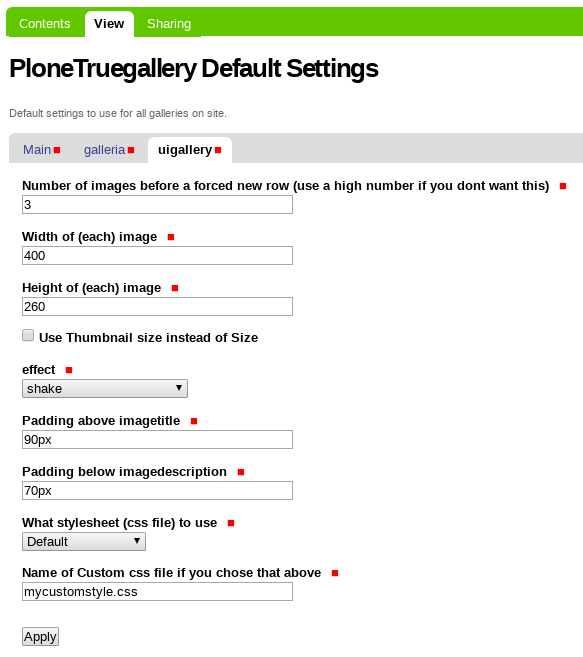
The uigallery configlet from the PloneTruegallery Default Settings control panel.
Todo
TODO fix the jQuery error with Plone 4
Todo
TODO a screenshot for uigallery gallery display type
collective.ptg.allnewest
The collective.ptg.allnewest package installs all and the newest truegalleries extensions to collective.plonetruegallery package. This package installs alpha versions, so beware.
If you want to install all available galleries, you could add to buildout’s egg section the following:
eggs =
  ...
  collective.ptg.allnewest
Note
This will also install some galleries that are “under development”.
Since this product depends on plone.app.z3cform package, you’ll need to add a
few overrides for products versions in your buildout if you aren’t using recent
versions of Plone. Good news is that is you’re using any other product that
uses plone.app.z3cform package, you’ll already be good to go.
Basically, you’ll need to add these to your buildout versions section ONLY IF you’re running a Plone < 4.1.
For Plone 4.0:
[versions]
z3c.form = 2.3.2
plone.app.z3cform = 0.5.0
plone.z3cform = 0.6.0
zope.schema = 3.6.0
and Plone 3.x:
[versions]
z3c.form = 1.9.0
plone.app.z3cform = 0.4.8
plone.z3cform = 0.5.10
zope.i18n = 3.4.0
zope.testing = 3.4.0
zope.component = 3.4.0
zope.securitypolicy = 3.4.0
zope.app.zcmlfiles = 3.4.3
These versions are not the exact versions collective.plonetruegallery package requires,
it’s just a known working set. If you already have plone.app.z3cform package installed
under different versions or wish to upgrade versions, you’re fine doing so.
Then once you run buildout with this configuration, install collective.plonetruegallery
package via the the add-on product configuration. Also, make sure Plone z3cform support is
installed too. If you experience issues where no settings appear in the Gallery Settings tab,
reinstall Plone z3cform support.
Content Types Supported
Some Plone Content Types via add-ons extra supports the collective.plonetruegallery package.
collective.ptg.contentleadimage
The collective.ptg.contentleadimage package add an adapter for
collective.plonetruegallery package to display
contentleadimages from collective.contentleadimage package.
In the weird case where an object is an image (provides IImageContent object)
and also has a contentleadimage object, the contentleadimage is the one
displayed in the gallery.
How It Works
Note
First you can enables the Content Lead Image and Plone True Gallery
add-ons from Add-ons Plone control panel.
The contentleadimage applies on Content types object that have a Image field
like News, them you can go, for example, to the News section at
the main navigation, this view looks like the following picture:
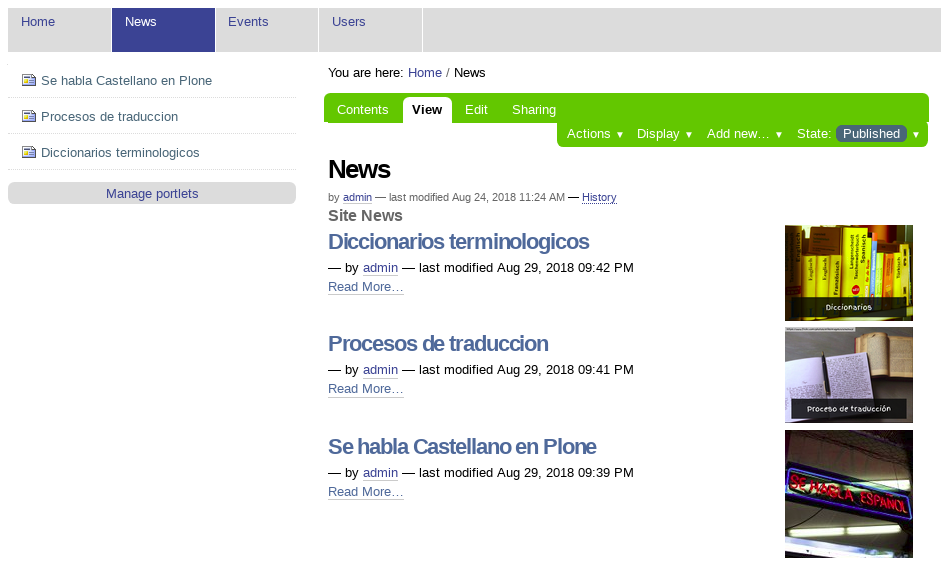
The “Collection” default view in “News” section.
You can enabled the contentleadimage gallery type follow the steps:
- at the top right corner of the page click on the Admin drop down menu
- choose Site Setup
- at the Add-on Configuration
- click on Plone True Gallery settings section
- at the Main tab changes the Types option with
the
Use Plone, ContentLeadImages enabledvalue
Once that is done, you can access (again) a Collection content type,
for example go to News section at the main navigation, and changes
the Gallery View from the Display, this view looks like
the following picture:
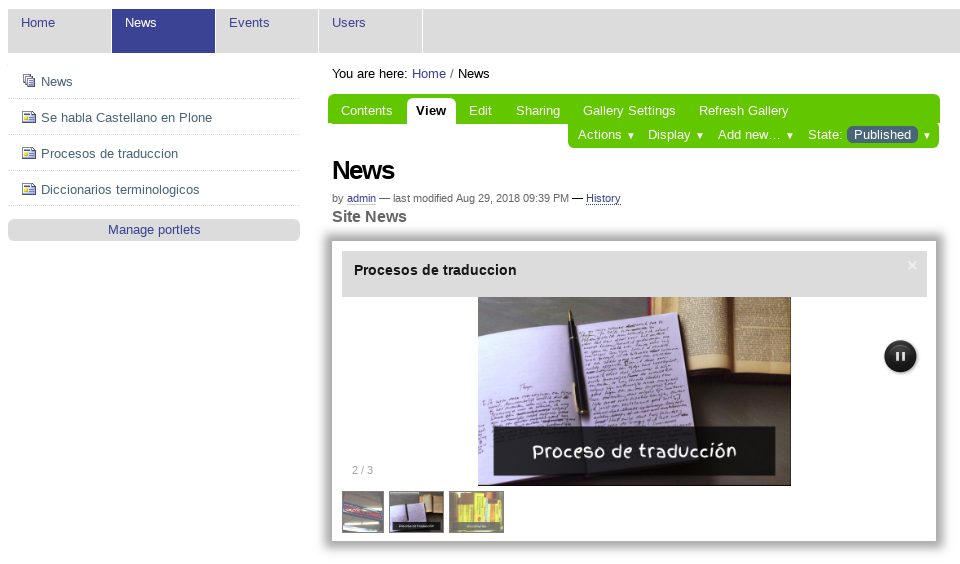
The “Gallery View” default from the “News” section.
By default, load the content lead-image from the News objects created into
News section, with the gallery display type by default, almost always
is the collective.ptg.galleria gallery display type.
Note
All you need to do for works the contentleadimage adapter for
collective.plonetruegallery package is select
the Gallery View from the Display drop down item
for any Folder or Collection content type.
Content Lead Image
The collective.contentleadimage product adds complete support for adding
descriptive image to any Archetypes based content in Plone site. Each object
has new tab Edit lead image, which allows to upload new or remove current
image. It is similar behaviour as Plone News Item (you can add image to news
item and this image is displayed in news item overview listing.
There is Folder lead-image view page template, which can be used to list
all items in the folder together with images attached.
There is configuration control panel, where you can set maximum width and height of the uploaded images. The width and height is applied on each image upload (image is automatically resized). You can specify smaller width and height which is used as image preview in the below content title viewlet (next to content Description). Large image is used in the above content body viewlet (floated left at the top of content body).
Below content title viewlet is preffered, but Manager can easily switch the viewlets on/off in the control panel.
There is FieldIndex and metadata in portal_catalog: hasContentLeadImage
(True/False). This may help developers to create own templates optimized
for displaying lead image.
collective.ptg.galleryimage
The collective.ptg.galleryimage package add a Gallery Image like a content type.
The purpose of this field is to provide a more robust field for
collective.plonetruegallery package to utilize for some of
it’s galleries.
How It Works
Note
First you can enables the Gallery Image Type and Plone True Gallery
add-ons from Add-ons Plone control panel.
Utilizes the Image type along with archetypes.schemaextender package to create
the type. The benefit of using this approach is that there is no new persistent object
types added to the ZODB so uninstall should be a breeze and removing the product will
mean those existing types will behave just like the normal Image content type.
You can add a new Content Type object called GalleryImage via the Add new… dropdown menu, this view looks like the following picture:
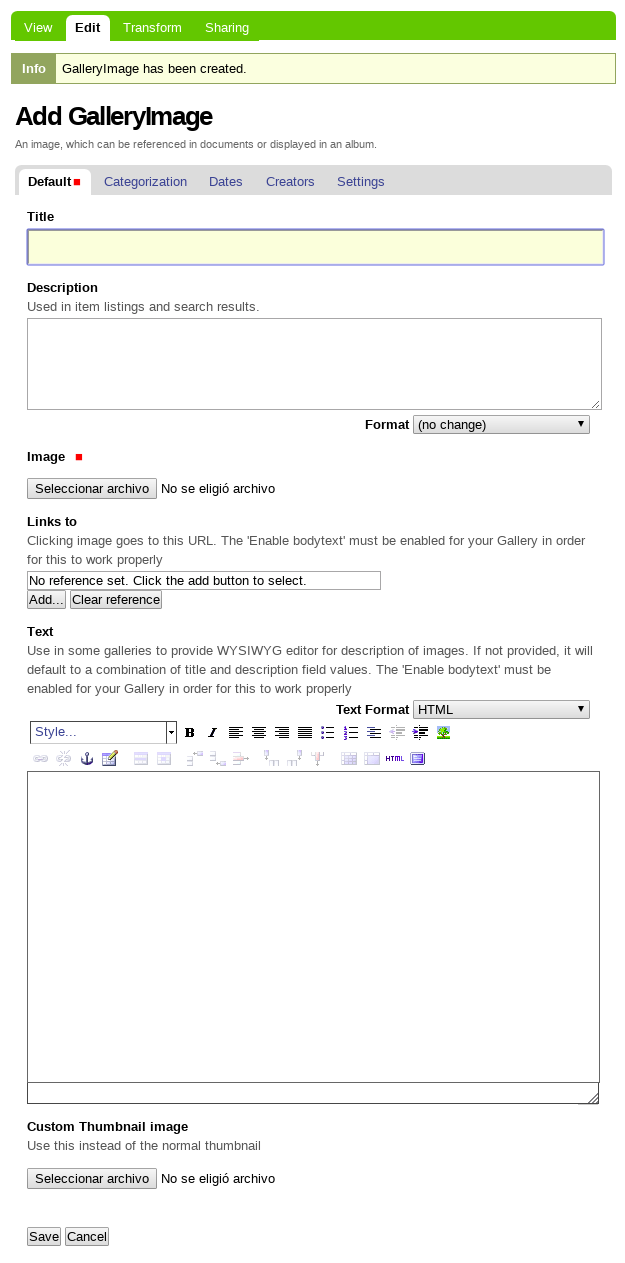
A Content Type object called GalleryImage.
Warning
It’s very important that add a reference Links to with a other Plone content type object, for example, them when clicking image goes to this URL.
So add some new GalleryImage objects inside a Folder and changes the
Gallery View from the Display, this view looks like
the following picture:

The “Gallery View” with “Content Flow” gallery display type.
Them when the user clicking on a image with reference to Plone content type object specific goes to this URL.